
To send WooCommerce New Order emails to different addresses by product or category, hook woocommerce_email_recipient_new_order, loop over $order->get_items(), and append (or replace) the recipient when a product or category matches. Without code, GoUp Conditional Order Email Recipients does it with rules, and can also send each team only the line items that concern them.
Key takeaways
- WooCommerce's New order Recipient(s) field is one list for every order; it cannot change by product or category.
- Each email has its own recipient filter, such as woocommerce_email_recipient_new_order, which receives the recipient string and the order.
- Append addresses to route a copy to a department, or return a different address to replace the default recipient.
- A recipient filter always sends the full order. If a warehouse or supplier should see only their items, you need a separate, filtered email.
A single "New order" email to one inbox works until the business grows a print department, a florist team and a warehouse, each of which only cares about part of the order. WooCommerce's Recipient(s) field for admin emails accepts a list of addresses, but it is the same list for every order. This guide shows how to send WooCommerce new order emails to different addresses based on the product or category, with a functions.php snippet and with GoUp Conditional Order Email Recipients, which can also send each team only the line items that concern them.
How WooCommerce chooses the recipient
Every admin email class reads its recipient from settings and then runs a filter named after the email: woocommerce_email_recipient_new_order, woocommerce_email_recipient_cancelled_order, woocommerce_email_recipient_failed_order. The filter receives the comma-separated recipient string and the order. Change the string, change the recipient.
Customer emails also have recipient filters (woocommerce_email_recipient_customer_processing_order) but you rarely want to redirect those — the customer expects them. For copying someone silently, see CC and BCC on WooCommerce order emails.
Option 1: Change the New Order recipient by product with a snippet
This example adds the print department when an order contains the custom-print category, adds the florist when it contains the flowers category, and sends orders for product ID 321 to the branch that stocks it instead of the default address.
add_filter( 'woocommerce_email_recipient_new_order', function ( $recipient, $order ) {
    if ( ! $order instanceof WC_Order ) {
        return $recipient;
    }

    $extra   = array();
    $replace = null;

    foreach ( $order->get_items() as $item ) {
        $product_id = $item->get_product_id(); // parent ID, so variations match

        if ( has_term( 'custom-print', 'product_cat', $product_id ) ) {
            $extra[] = 'print@example.com';
        }
        if ( has_term( 'flowers', 'product_cat', $product_id ) ) {
            $extra[] = 'florist@example.com';
        }
        if ( 321 === $product_id ) {
            $replace = 'branch-north@example.com';
        }
    }

    if ( $replace ) {
        return $replace;
    }

    $extra = array_unique( $extra );
    return $extra ? $recipient . ',' . implode( ',', $extra ) : $recipient;
}, 10, 2 );
Repeat with woocommerce_email_recipient_cancelled_order and woocommerce_email_recipient_failed_order if those teams should also hear about cancellations.
What the snippet cannot do
- Matched items only. Every recipient gets the full order with every line item, price and address — a dropshipper sees your other suppliers' products and the customer's phone number.
- Visibility. Rules live in PHP; nobody in operations can see or change them.
- Conflicts. Two snippets that both
return $replaceoverwrite each other in filter-priority order, silently. - Email types. Each email needs its own copy of the logic.
Option 2: Route order emails by product or category without code
GoUp Conditional Order Email Recipients puts all of this in a rules screen under WooCommerce → GoUp Email Routing. Each rule targets one email type and matches products or categories.
- Rules → Add rule.
- Trigger: Product (choose products or variations; "parent matches variations" is on by default) or Category (choose categories; optionally include children).
- Match: ANY selected item present, or ALL selected items present.
- Email: the WooCommerce email this rule applies to — New order, Processing order, or any email registered on the site.
- Recipients: Add to the default list or Replace it, plus optional CC and BCC.
- Content: Full order sends the normal email; Matched items only renders a separate copy containing only the matched line items, with switches for product subtotal, shipping, tax, order total, payment method, billing/shipping address and customer note. Matched-only recipients are removed from the full-order message so they never receive the unfiltered order.
- Priority and Stop processing control how multiple rules combine. Save.
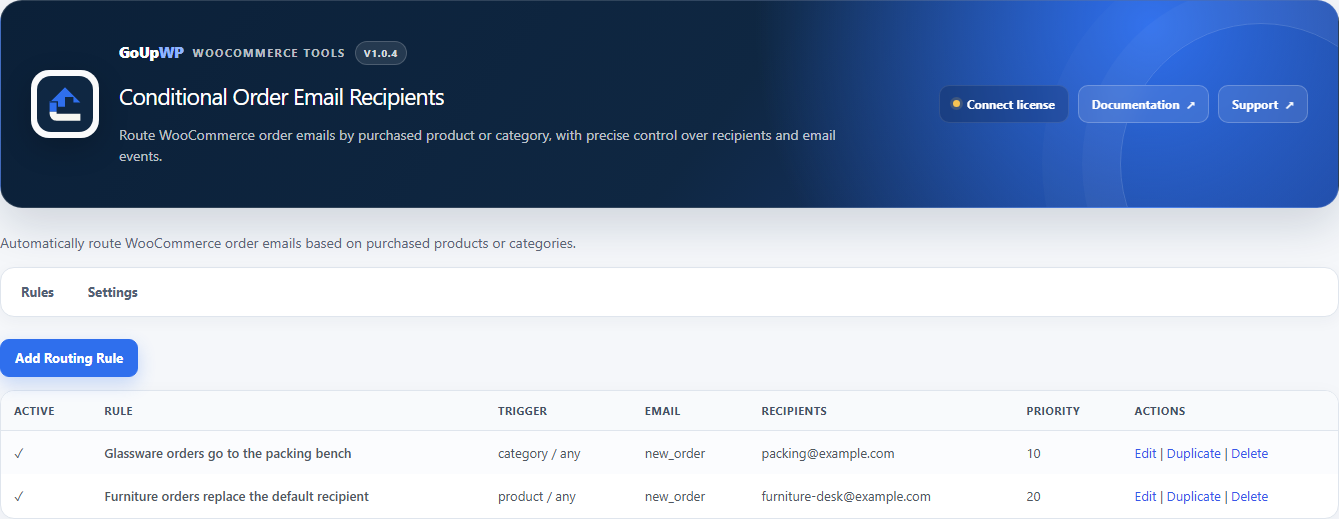
The plugin reads orders through WooCommerce APIs, declares HPOS compatibility and works with orders placed through the classic checkout or the Checkout Block. Matched-items-only emails use temporary filters and never save changes to the order. Rules export and import as JSON. Requires PHP 8.1.
Price: $12 per year for one production site plus one staging site, or $49 lifetime. Documentation · Pricing.
Example routing setups
| Business | Rules |
|---|---|
| Print shop with a production team | Category: Custom print → New order → Add production@, Matched items only |
| Multi-branch retailer | Product: SKUs stocked at North → New order → Replace with north@ |
| Florist with a central operations inbox | Category: Flowers → Processing order → Add florist@; BCC ops@ |
| Store with an outsourced warehouse | Category: Warehouse-fulfilled → New order → Add 3pl@, Matched items only, hide prices |
When to use a separate supplier email instead
If each supplier must get a private message containing only their items, on a chosen order status, with a resend button and a delivery log, the right tool is GoUp Supplier Order Notifications — see How to automatically email suppliers their part of an order. Conditional Order Email Recipients changes who receives WooCommerce's own emails; Supplier Order Notifications creates a new supplier email.
Troubleshooting
The extra recipient receives nothing. Check that the email is enabled under WooCommerce → Settings → Emails, then look at your SMTP plugin's email log: every address in the comma-separated list should appear as a recipient. If only the first one does, a typo in one address (a stray semicolon, a missing @) is usually the cause.
Variations do not match. Use get_product_id() (parent) rather than get_variation_id() for category checks.
Two rules both replace the recipient. Only one Replace can win. In the plugin, set priorities and use Stop processing on the rule that should take precedence.
Choosing between Add and Replace
Add keeps the default admin address and appends the department, so head office still sees every order — the safe default for most stores. Replace sends the email only to the matched recipients, which suits franchises and branches that own their orders outright, but means a rule with a typo sends the order to nobody. Start with Add, confirm the department is receiving the right orders for a week, and only then switch specific rules to Replace. If a team should see an order but not its prices or the customer's phone number, use Matched items only with those switches off rather than trusting people to ignore what is in front of them.
Related guides
- Add CC and BCC to WooCommerce order emails
- Automatically email suppliers their part of an order
- Send Local Pickup order emails to the right branch
- All WooCommerce email plugins
Summary
To send WooCommerce new order emails to different addresses based on the product or category, filter woocommerce_email_recipient_new_order, inspect the order items, and append or replace the recipient. That covers "print orders also go to the print room". It does not cover privacy: every recipient still sees the whole order. When a team should see only its own line items, or operations staff need to change routing without a developer, use rules with a matched-items-only mode.
Frequently asked questions
Can I send the WooCommerce new order email to two different departments depending on what was ordered?
Yes. Create one rule per department: Category = Printing → New order → Add print@; Category = Flowers → New order → Add florist@. An order containing both products notifies both departments. Set Replace instead of Add if the default admin address should not be copied.
Can the warehouse receive only their own products, not the whole order?
With a snippet, no — the recipient filter only changes who receives the standard email. GoUp Conditional Order Email Recipients has a Matched items only content mode that renders a separate copy containing just the matched line items, with switches for subtotals, shipping, totals, addresses and the customer note.
Does this work for Processing, Completed and other emails, not just New order?
Yes. Each WooCommerce email has its own recipient filter (woocommerce_email_recipient_{email_id}). The plugin lists every email type registered on the site, including ones added by other plugins, and each rule targets one of them.
Will the customer see the extra recipients?
No. Admin emails such as New order are separate from customer emails. Rules target the operational email; the customer's Processing order email is untouched unless you deliberately create a rule for it.
What happens when several rules match the same order?
All matching rules apply in priority order and their recipients are merged, de-duplicated. A rule with Stop processing prevents lower-priority rules from running. Matched-items-only recipients are removed from the full-order message so they never see the whole order.